How to get a contract signed online: a step-by-step guide
Send a contract, get it signed on any device and keep a record that holds up. A practical walkthrough, plus the small details that stop deals from stalling.
Getting a contract signed used to mean printing, scanning, chasing and re-sending. Online, the whole thing can take a few minutes. The tools are simple. What makes the difference is getting a few details right, so the client signs quickly and nothing has to be redone.
Here's a practical walkthrough you can follow with any e-signature tool, with notes on how it works in SignKnox.
Before you send: get the document final
The most common reason a contract stalls is that it wasn't ready. Before you send it for signature:
- Check names, dates and amounts. A wrong spelling of a company name is the classic reason a contract comes back unsigned.
- Agree on the terms first. Signing is the last step, not the place to negotiate. If there are open points, settle them by email or a call first.
- Save it as a PDF. A PDF looks the same on every device, so what the client sees is exactly what you sent.
Step 1: Upload the document
Start a new document and upload your PDF. If you send the same kind of contract often, save it as a template with the fields already placed. Next time it's ready in seconds.
Step 2: Add the people who need to sign
Add each signer's name and email address. Then decide two things:
- The signing order. Should everyone sign at once, or one after another? For most client contracts, the client signs first and you countersign. That way they aren't waiting on you. In SignKnox you set this as "Signs 1st", "Signs 2nd" and so on.
- Who just needs a copy. A partner, an assistant or the client's accountant may only need the finished document. Add them as copies instead of signers, so they aren't asked to do anything.
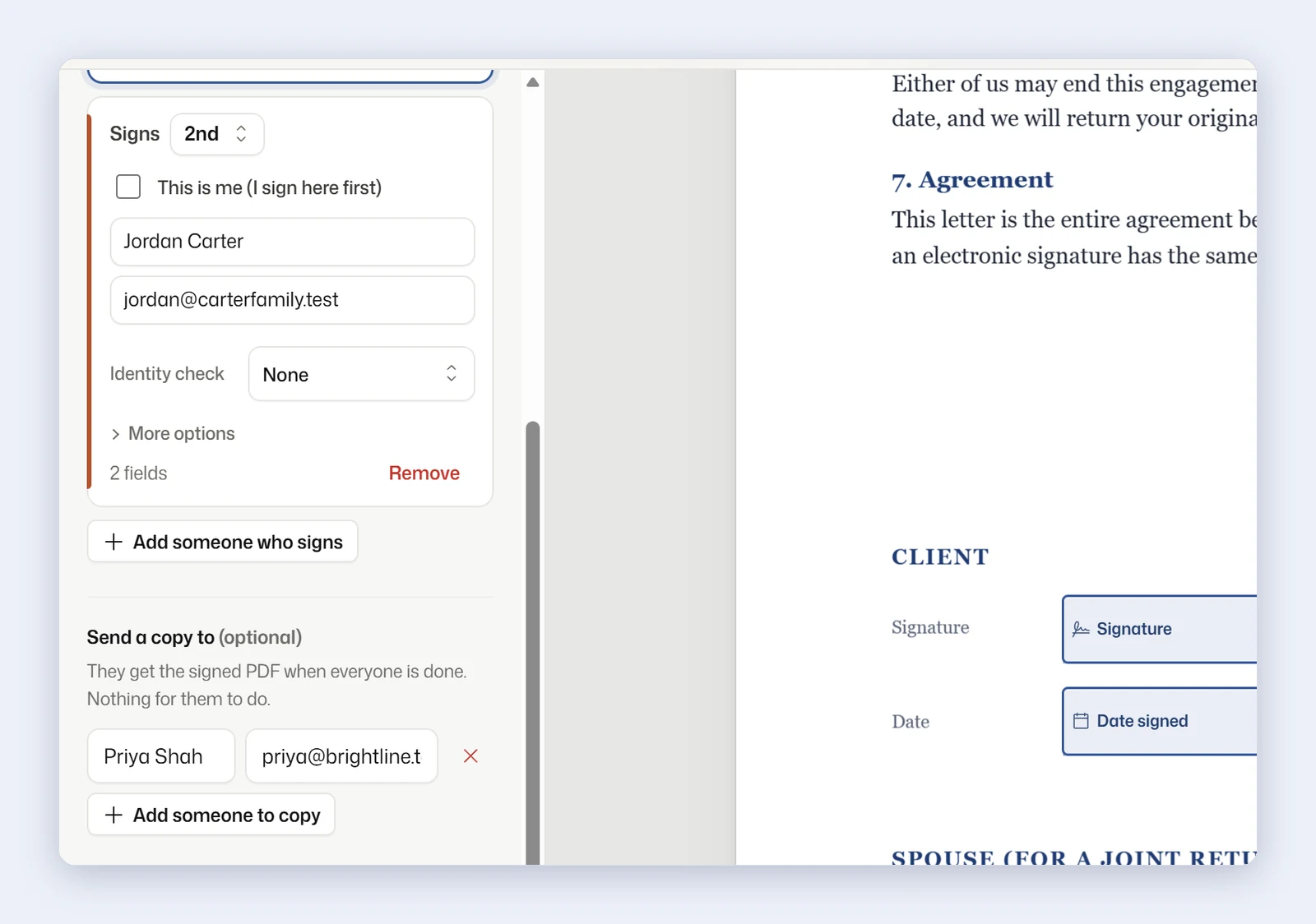
Two signers in order, plus a colleague who only gets the finished copy.
Step 3: Place the fields
Put a signature field everywhere a signature is needed, plus any initials, dates or details you need the signer to fill in. A few tips:
- Only ask for what you need. Every extra field is one more chance for someone to stop and come back later.
- Fill in what you already know. Don't make the client type their own address if it's already in the contract.
- Use a date field that fills itself in, so the signing date is always right.
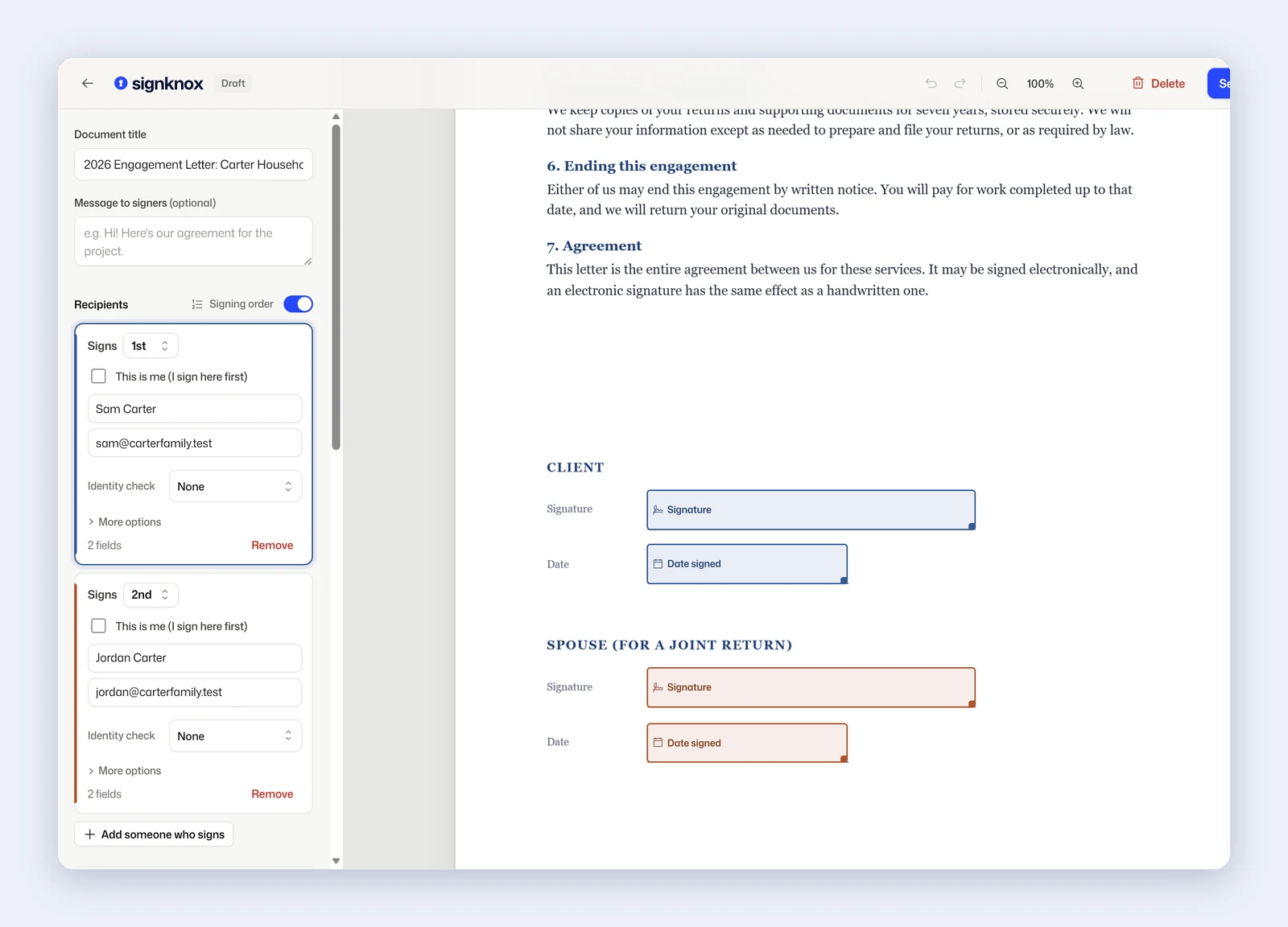
Each signer gets their own color, so it is clear whose box is whose.
Step 4: Write a short, clear message
The email that carries your contract matters more than people think. Keep it to two or three lines:
Hi Sam, here's the engagement letter we discussed on Tuesday. It takes about two minutes to sign on your phone. Any questions, just reply to this email.
Say what it is, how long it takes, and how to ask a question. That's it.
Step 5: Send it, and let reminders do the chasing
Once it's sent, the signer gets an email with a secure link. They can open it on a phone, tablet or computer, read the document and sign without creating an account.
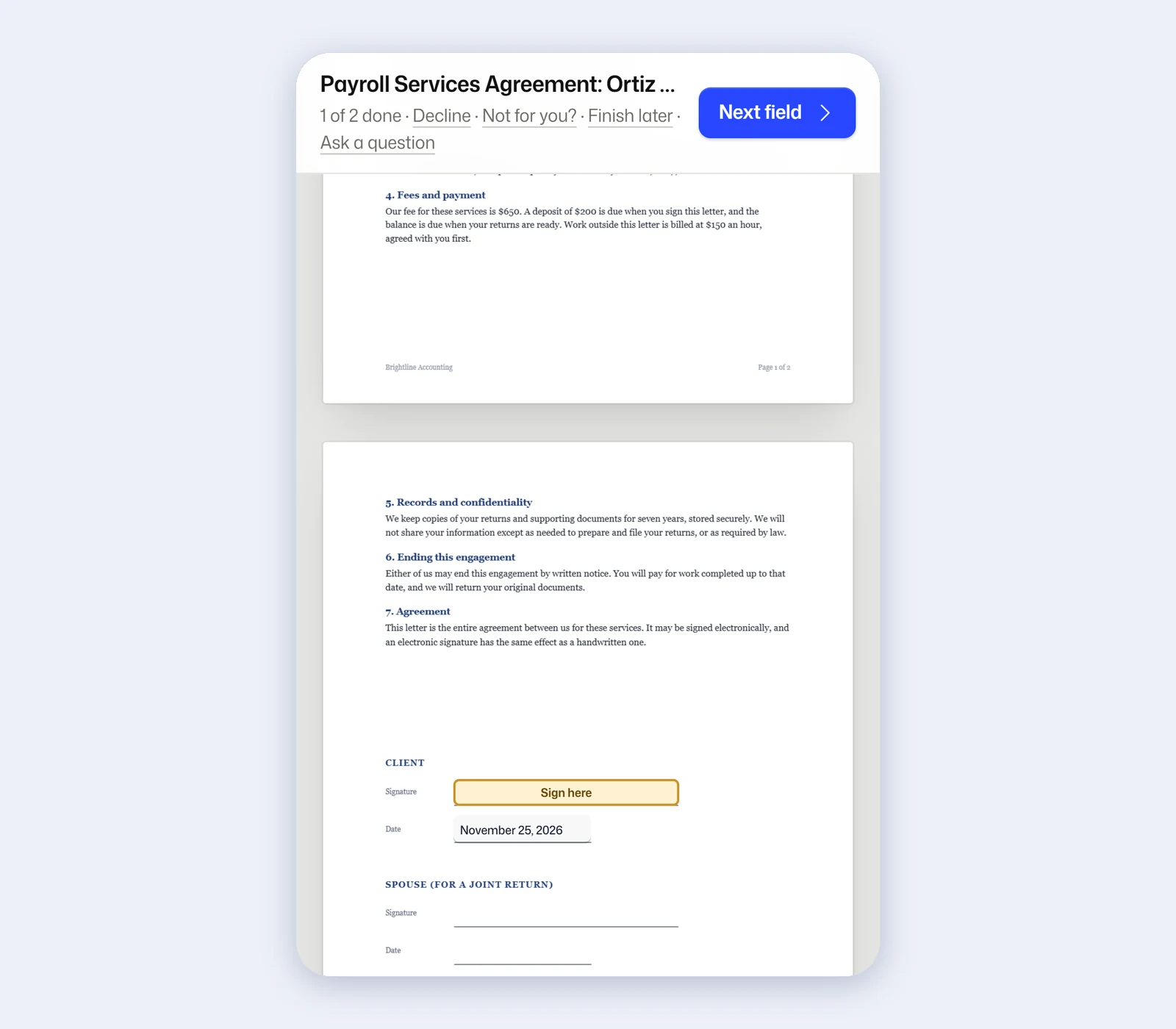
What the client sees: the document, with each box they need to fill in highlighted.
If they don't get to it, automatic reminders nudge them for you, so you don't have to write awkward follow-ups. You can also set an expiry date for offers that shouldn't stay open forever.
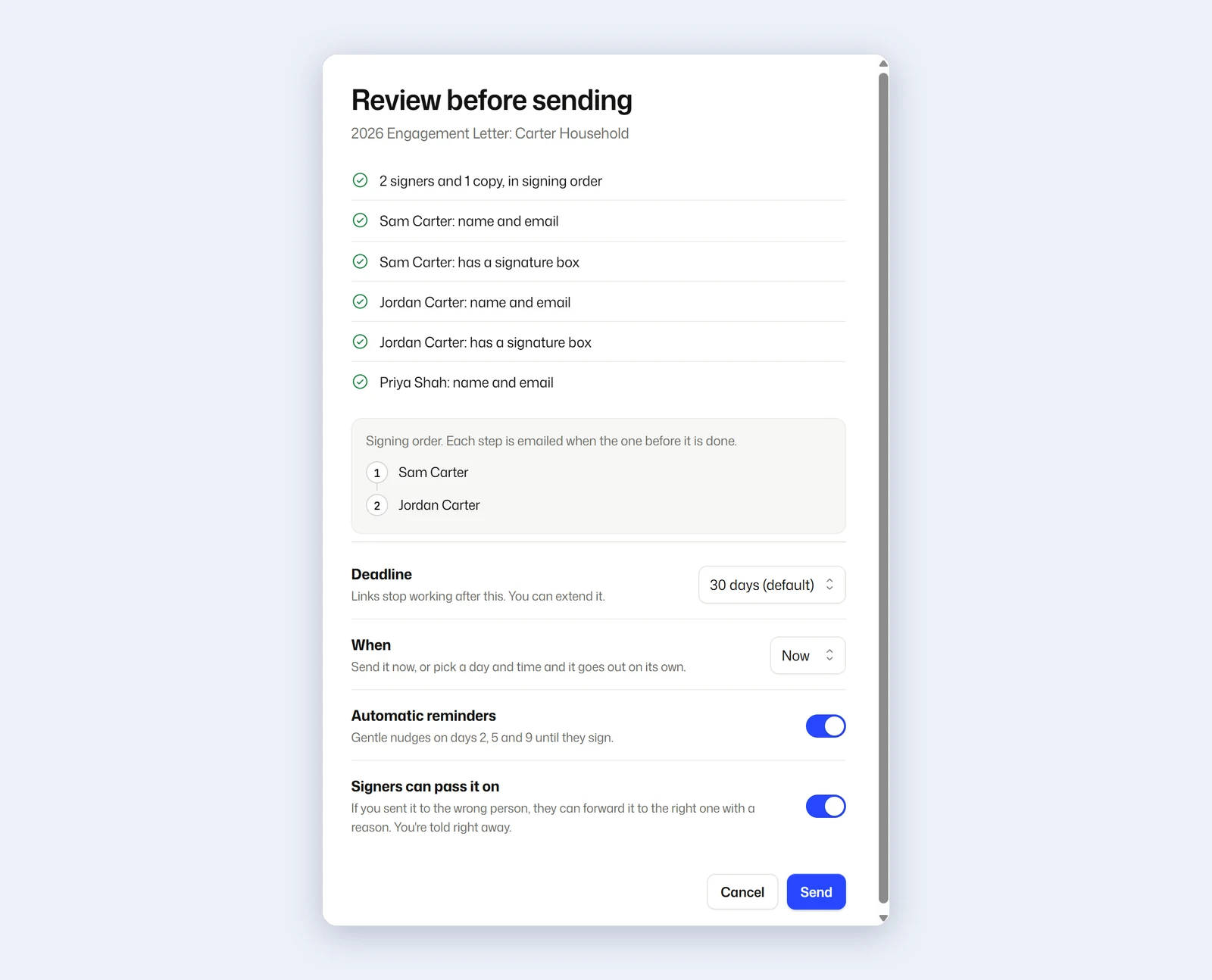
A last check before sending, with the deadline and automatic reminders set in one place.
Step 6: Get the finished copy and keep the record
When everyone has signed, each person gets the completed document. With SignKnox, the final PDF is sealed and comes with a Certificate of Completion showing who signed, when, and each step along the way. That record is what you'd rely on if anyone ever questioned the signature.
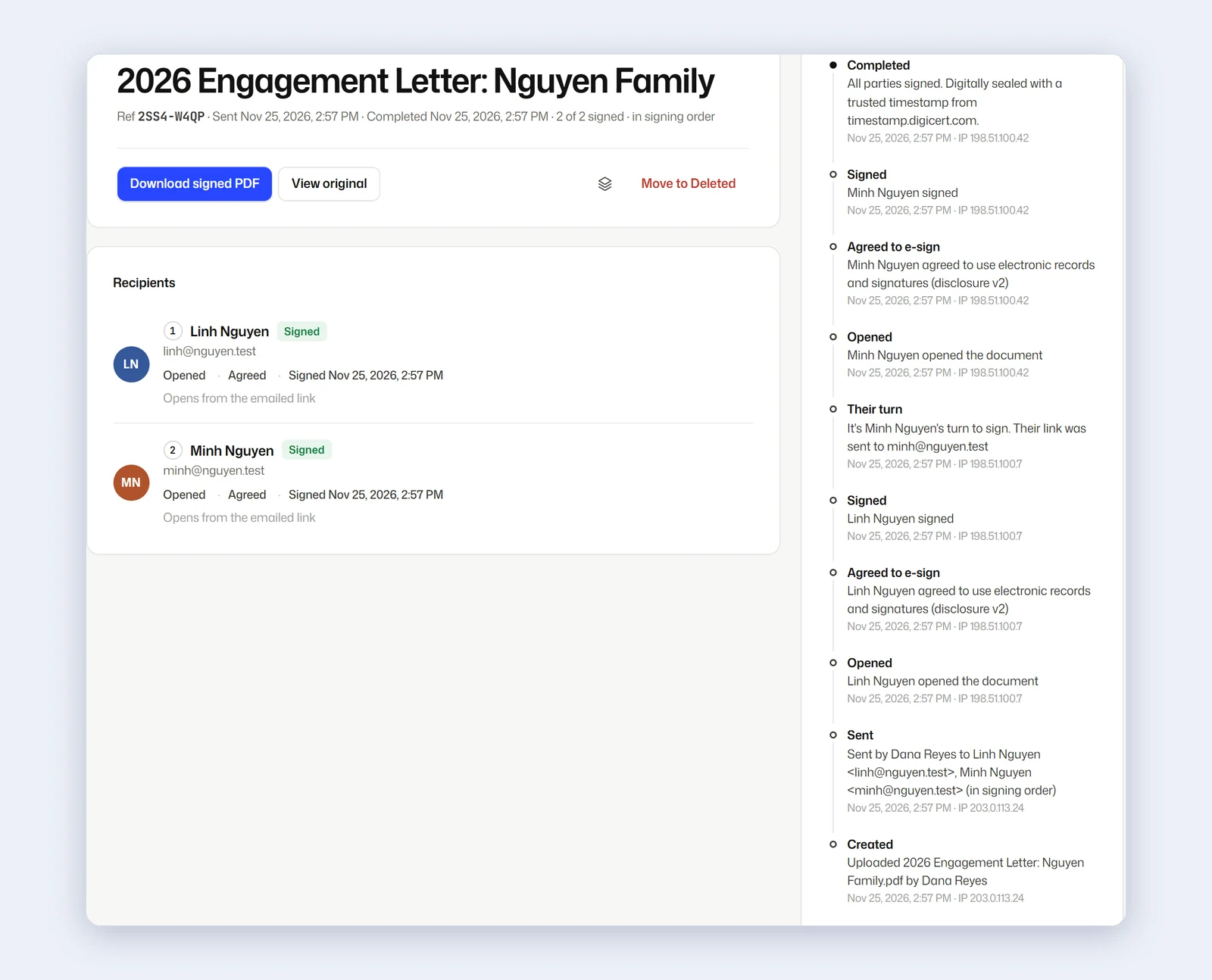
Done: both people signed, in order, with every step recorded.
Store it somewhere you can find it again. A good rule: if you'd keep the paper version for seven years, keep the digital one at least that long.
Bonus: collect the deposit at the same time
If the contract comes with a deposit or retainer, ask for it at signing. Clients are most ready to pay at the moment they commit, and you skip a separate invoice. SignKnox can take a card payment as part of signing on the Team and Business plans.
Common mistakes to avoid
- Sending a draft. Fixing a signed contract means starting over.
- Too many signers. Only people who must sign should sign. Everyone else gets a copy.
- No signing order. If your signature has to come last, say so. Otherwise you may countersign something the client later changes their mind about.
- Forgetting mobile. Most people open email on their phone first. Check that your document is readable on a small screen.
Try it on your next contract
You can do all of the above in SignKnox in a few minutes, with unlimited documents on every plan. Start a free trial, upload your contract and send it to yourself to see what your client will see.